Summary
Manage conversations in your VirtualText inbox — unassigned, assigned, and team threads, plus reply, note, attach, and search options.
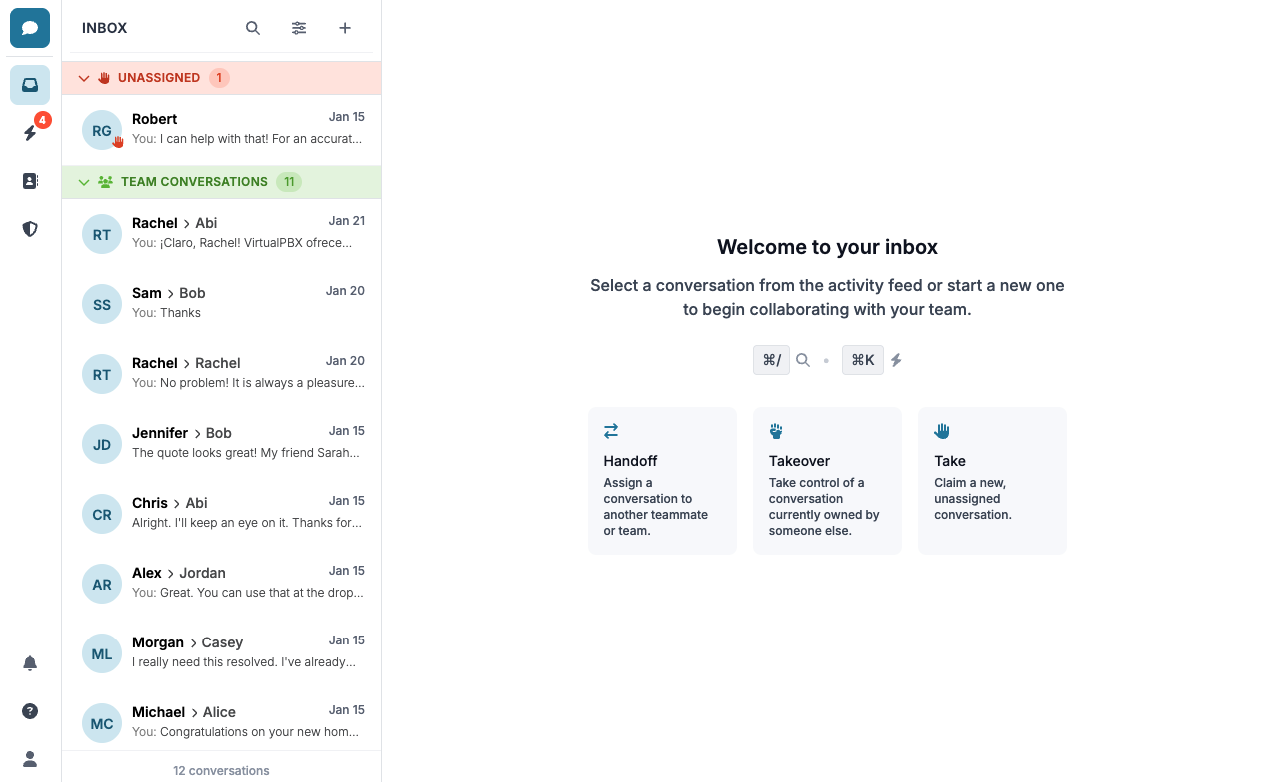
Your inbox page is main landing page when logging in. This is where you will be able to manage all conversations, whether through text or web chat.
Types of Conversations
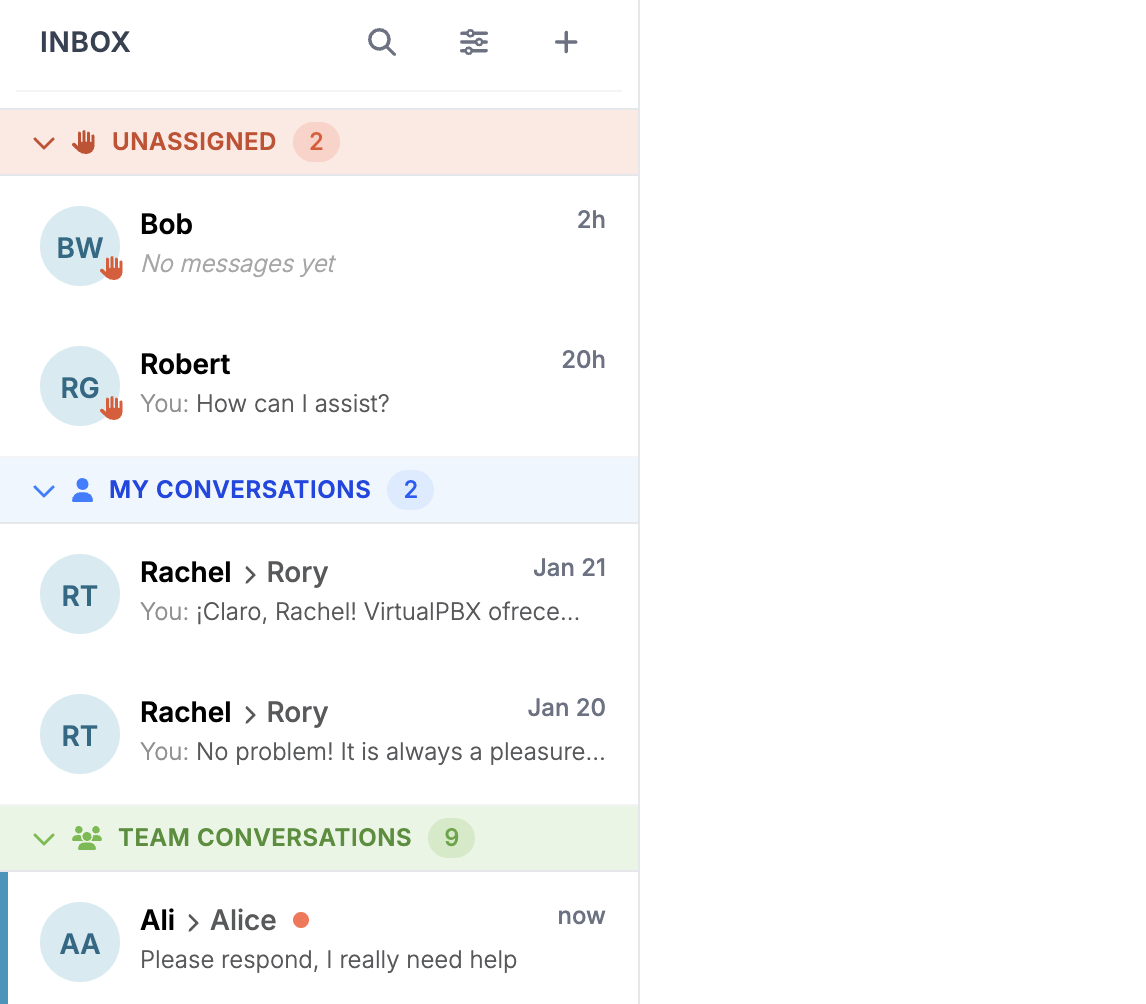
Unassigned
These conversations are not being worked on by any team member currently. Conversations end up here after the AI Agent hands off the conversation to the team, or if a conversation comes back after already being archived.
Options while Unassigned
-
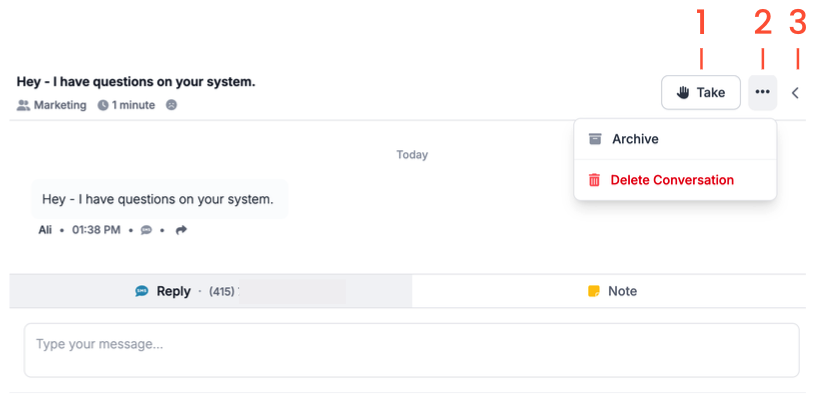
Take - Taking the conversation will change it from Unassigned to ending up in My Conversations
-
The three-line menu will allow you to either archive the conversation, or delete fully
-
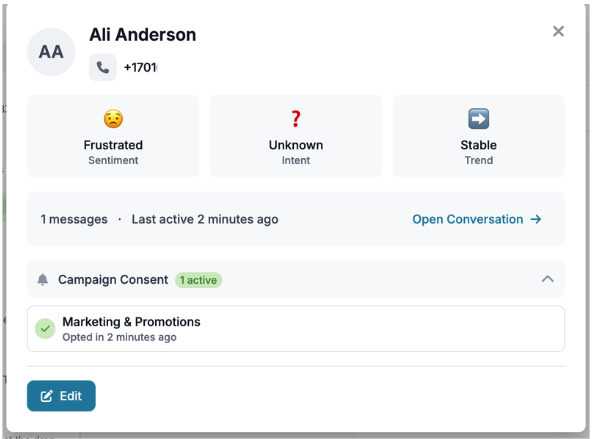
Customer details - When clicking on the arrow toggle, information on the person reaching out will populate including the type of method they are reaching out with, and the intelligence rating. You can click on ‘View’ to see a more intensive breakdown on the customer, and edit the information here.
My Conversations
If you have taken a conversation or been handed one by a team member, conversations will exist in this space
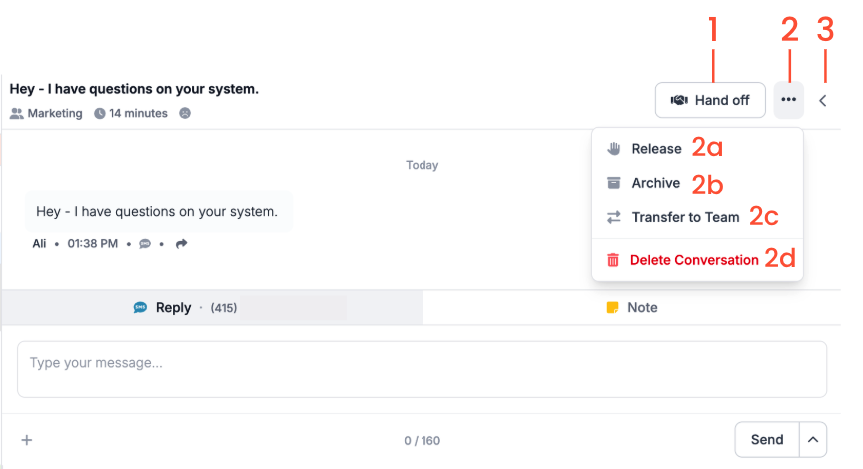
Options while assigned conversation
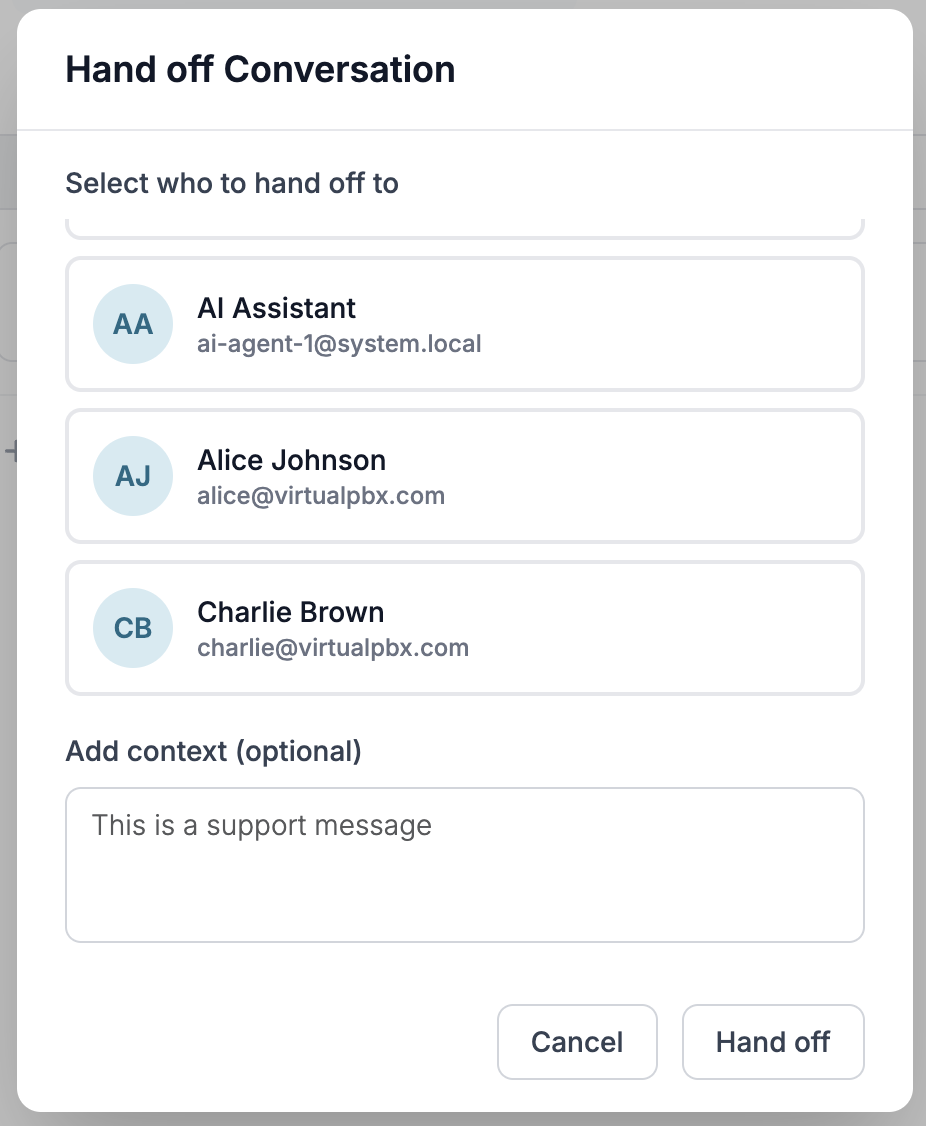
- Hand off - hand off to a team member with any additional notes needed
- Three-line menu
-
2a: Release - Releasing the conversation will move it back to ‘Unassigned’
-
2b: Archive - Archive the conversation once resolved
-
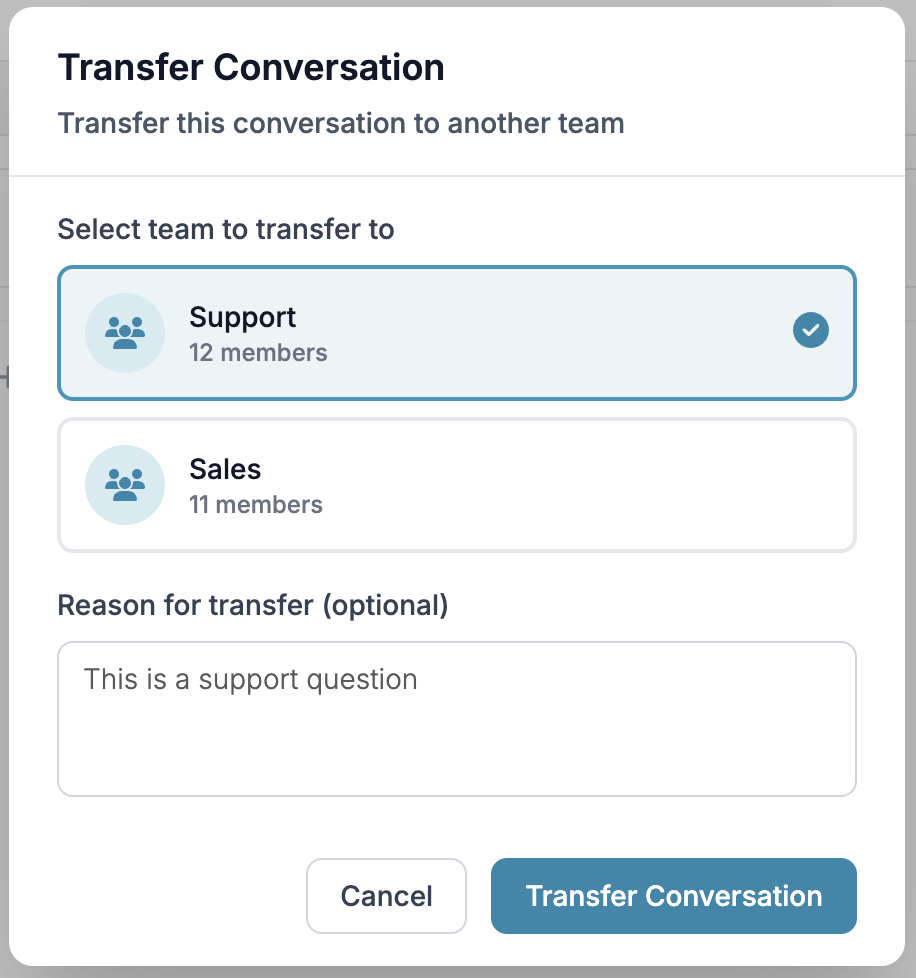
2c: Transfer to Team - transfer to the team the message is intended for with any additional context needed
- 2d: Delete Conversation
- Customer Details -
When clicking on the arrow toggle, information on the person reaching out will populate including the type of method they are reaching out with, and the intelligence rating. You can click on ‘View’ to see a more intensive breakdown on the customer, and edit the information here.
Team Conversations
These are conversations owned by other agents on your team. The only option you will be able to utilize here are ‘Take Over’ to assign it to yourself -
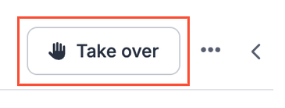
And add a note. You can refer to information on adding notes through our information below
Options while Messaging
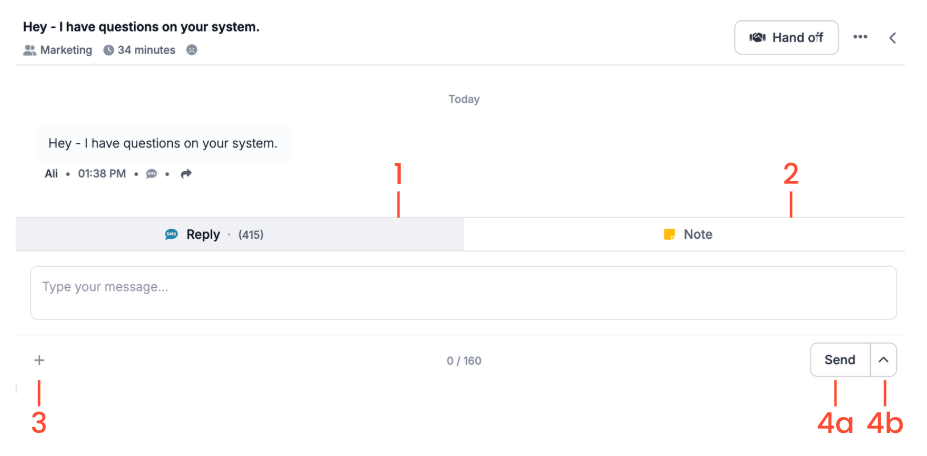
1. Reply
At the top of your Reply page, the type of conversation will appear as either an SMS chat or web chat. After typing out your reply, either click ‘Send’, or hit Enter on your keyboard

2. Note
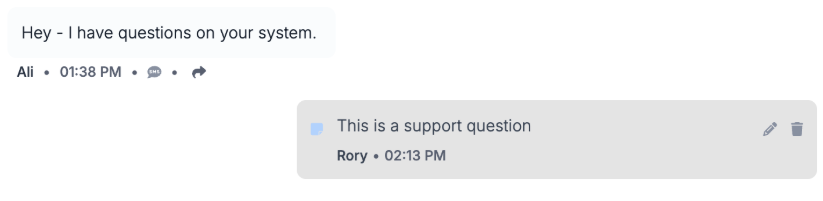
Whether the conversation is unassigned, with another team member, or assign to you, you can leave a note by clicking ‘Note’. This will only appear internally, and can help to provide context. After typing, click ‘Send’ or press Enter on your keyboard. If this is a note you have left, you are also able to edit or delete the note afterwards.
3. Attach
Click on the plus icon on the bottom right side of the chat to either
-
Attach File - this will open your documents to attach pictures or PDF files
-
Payment Link - if your admin has created products in your system, you can process a link for the customer to pay for the products here.
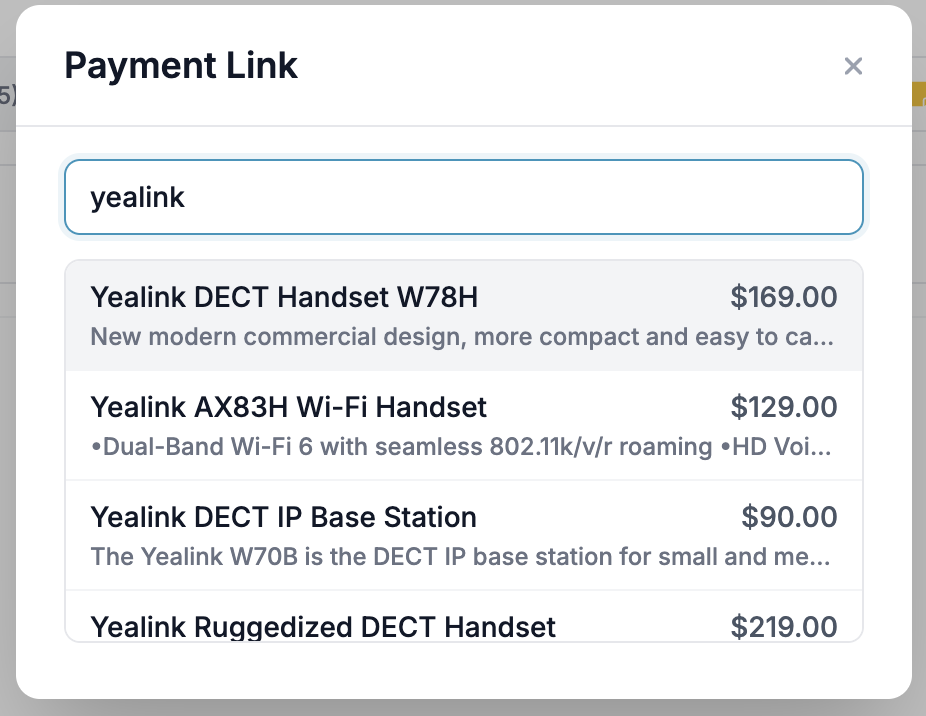
Type the intended product name in, and click on which item you would like to send the link for
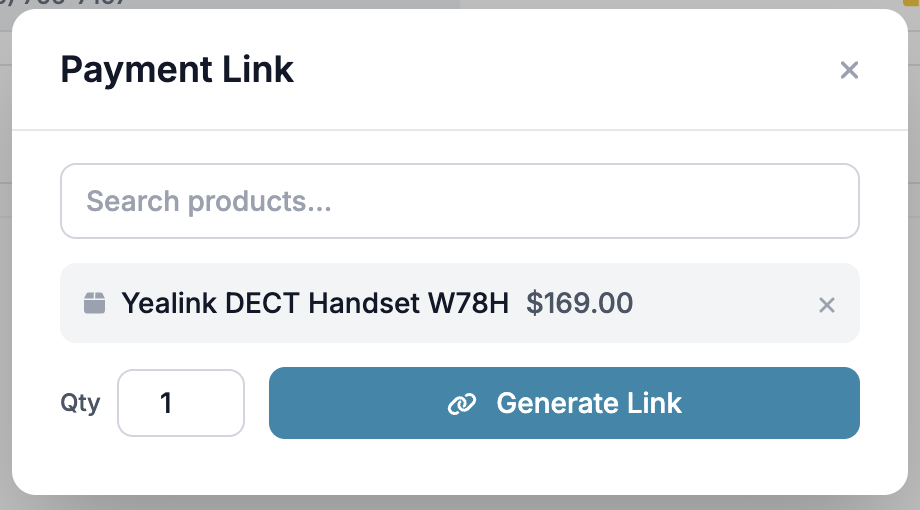
Once chosen, click ‘Generate Link’. From here you will be able to send the link for payment.
4a & 4b. Send or Schedule
-
4a: After you have finished your message, you can click on ‘Send’ or hit enter to send your message
-
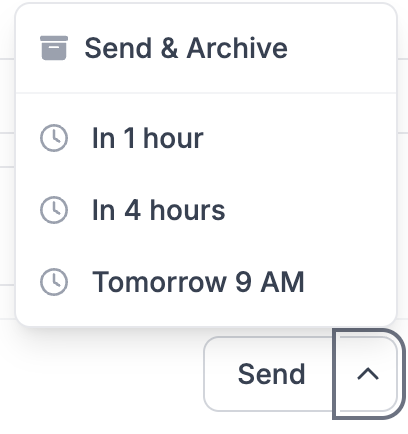
4b: You can also schedule your message to go out later by clicking on the arrow, or archive immediately after sending
Other Options in Inbox
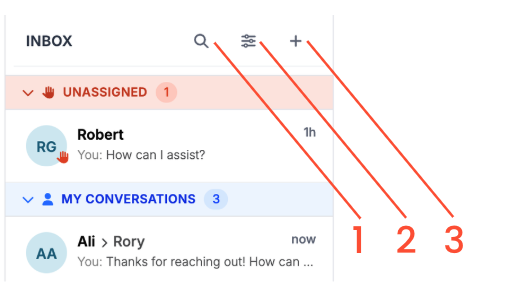
1. Search Conversations
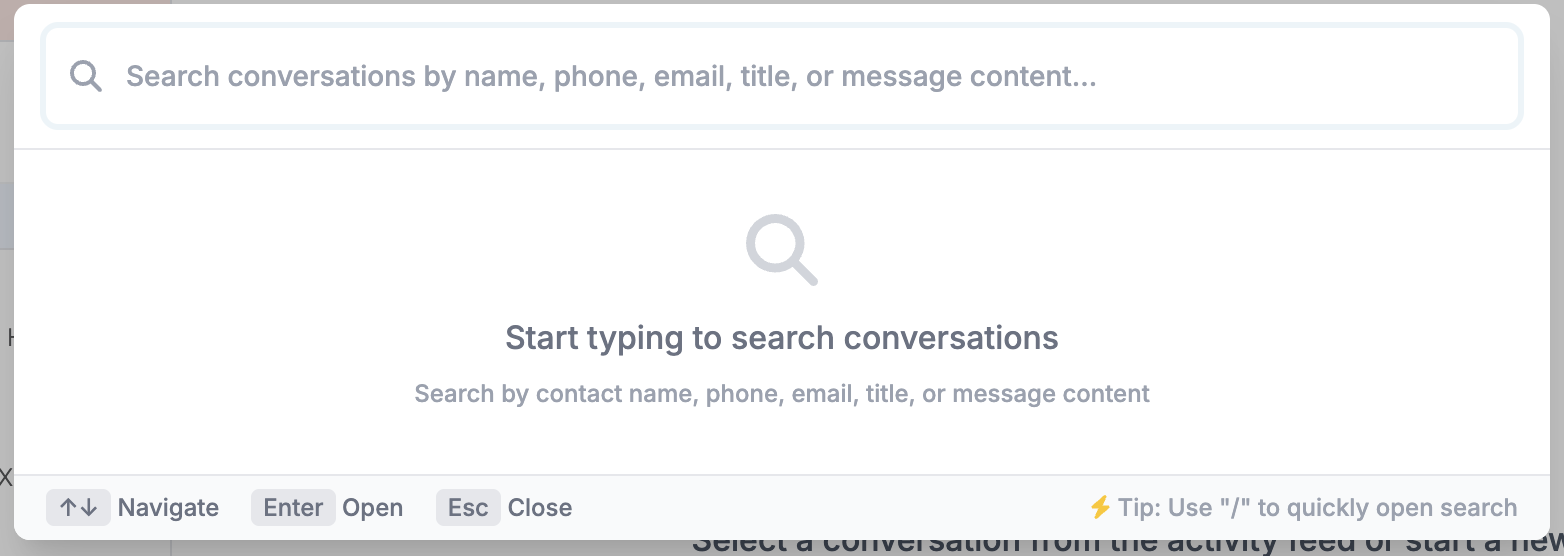
Click on the Magnifier Glass icon, or use “/” to quickly open the search. You can search by emails, titles, message content, name, or phone number.
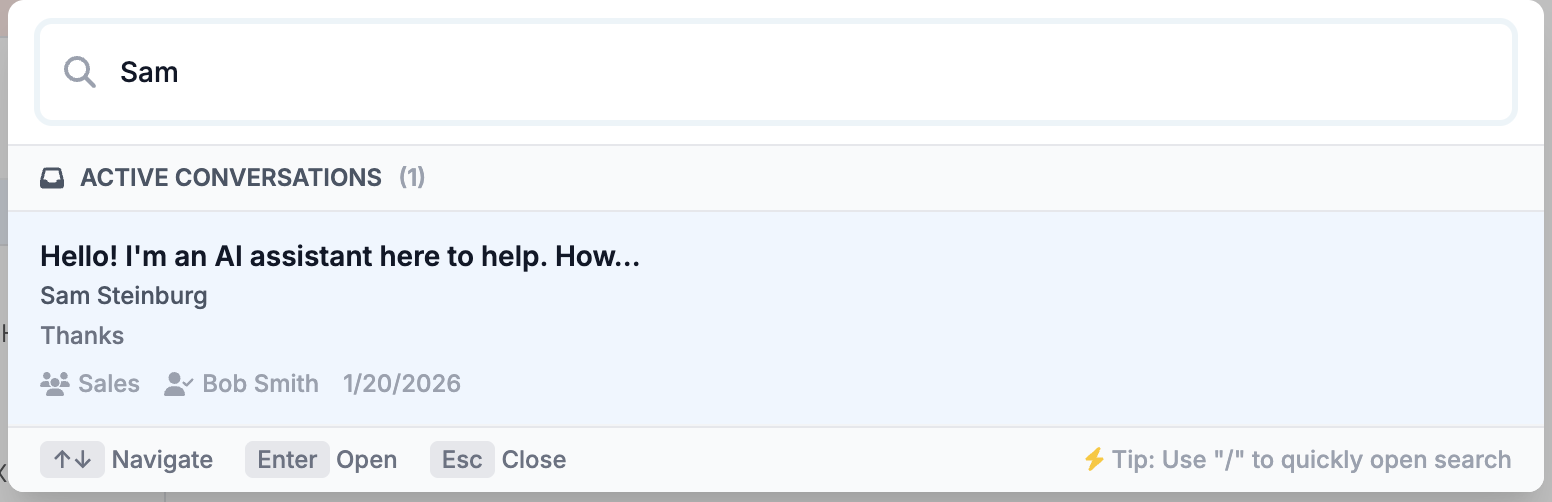
Searching the item will show if the conversation is active or not, the most recent message, what Team the conversation is with, the most recent Agent assigned to the message, and the date of the last message. Click on the conversation to open it.
2. Filter by Inbox
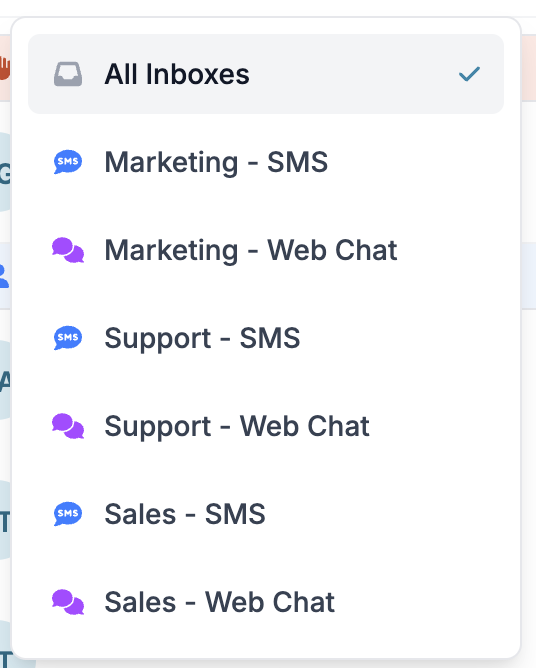
Use the middle icon to filter out conversations based on the inboxes you have access to
3. New Conversation
Click the Plus icon to create a new conversation
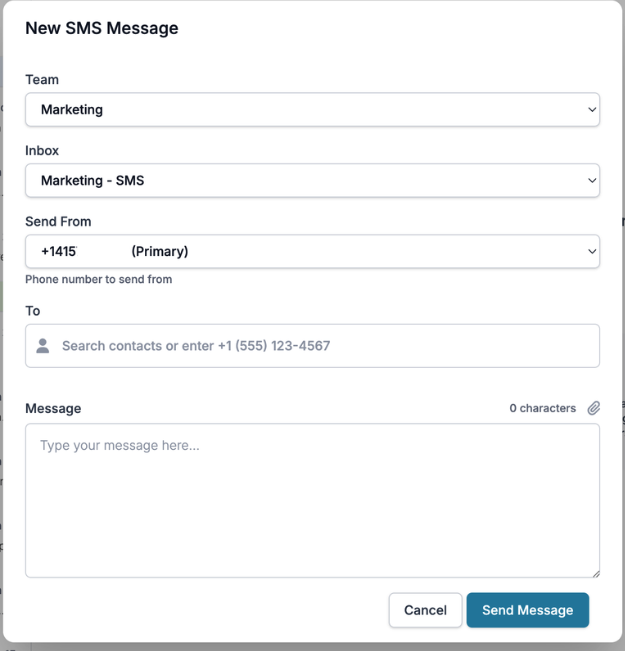
Use the dropdowns to choose your Team, Inbox, and what number you are sending from. Add your contact and message before clicking ‘Send Message’
New to VirtualText?
Try it free before you commit.
Start a VirtualText free trial — SMS and webchat included, plus shared inbox and Core AI.
Still need help?
Our support team is available Monday–Friday, 6 AM – 6 PM PST.