Summary
Organize and manage contacts in VirtualText — view profiles, import CSV lists, and keep customer details up to date.
There are three other icons on your main inbox page - Observations, Contacts, and Quarantine. Below is a breakdown of what each item does
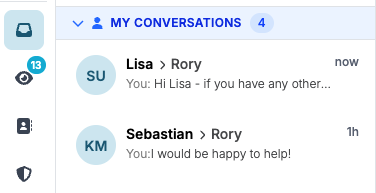
Observations
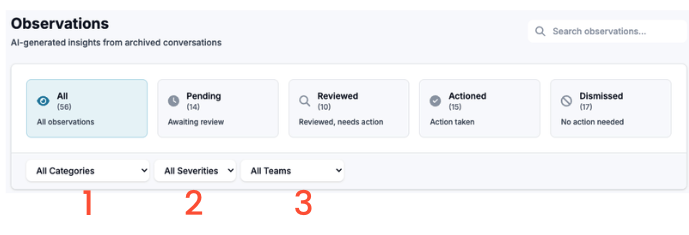
Here you can review conversations our AI automations have reviewed and provided more insights for - either missed possible upsells, wrong links, possible mistakes, etc., on a conversation.
-
All - All observations
-
Pending - Still needs to be reviewed by a team member
-
Reviewed - A team member has looked into the observation, but no further action has been taken
-
Actioned - Action has been taken but the observation has not been closed or dismissed
-
Dismissed - A Team Member has deemed the conversation to not need further action or ramifications
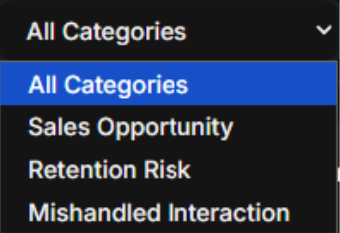
Categories
-
Sales Opportunity - Possible upsell or new sale deemed on the conversation
-
Retention Risk - Customer has noted in some way that they are thinking about churning and/or are frustrated by some part of the conversation or the product itself
-
Mishandled Interaction - Possible mistake by team member made during the conversation
Severities
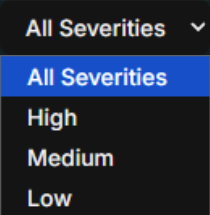
Track which level each Observation is on through this filter
Teams
Navigate between tagged teams for specific Observations
Options while reviewing Observations
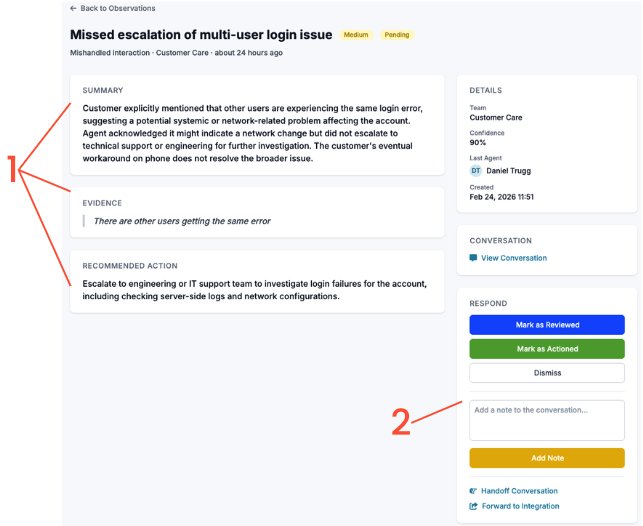
When clicking into an observation, you will see multiple items, including the AI evidence and suggestions, and how to respond
1. Information on Observations
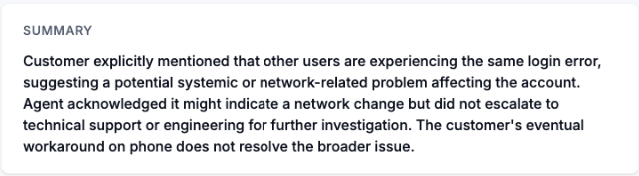
The first item you will see on the Observation is the Summary - a breakdown of the full conversation and where the AI has deemed it in need of further review
Next will be the Evidence provided on why this is deemed ‘Mishandled’

Finally, the AI will provide a recommended action for the team to take further

2. Respond and Other Features
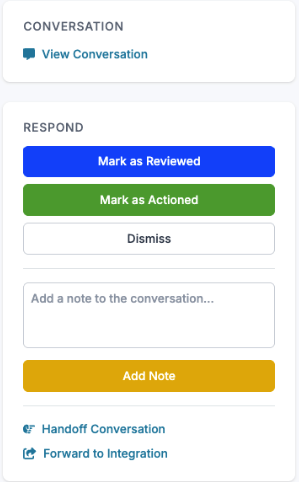
-
At the top, you can click ‘View Conversation’ to review the full scope of the conversation and gather any further details
-
Clicking ‘Reviewed’ will create a note on the observation and move the detail to ‘Reviewed’ - allowing you or other team members to continue the investigation while noting to the rest of the team you are looking into this
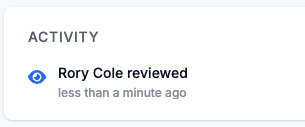
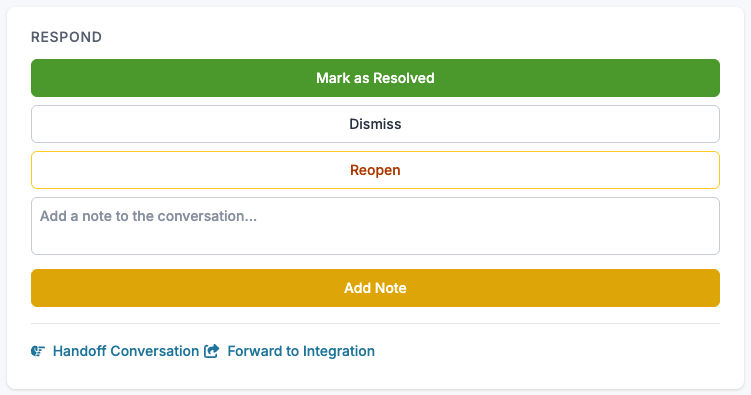
Once you have clicked ‘Mark as Reviewed’ your options will become marking as Resolved, Dismissing, Reopening the Conversation, or adding a note.
-
You can also hand off the conversation to a Team Member, or forward to an integration such as a CRM
-
Marking as Resolved -
Marking as Resolved will close the Observation and clear it from your Observations board -
Marking as Dismissed -
Dismissing the chat will require a note as to why it has been dismissed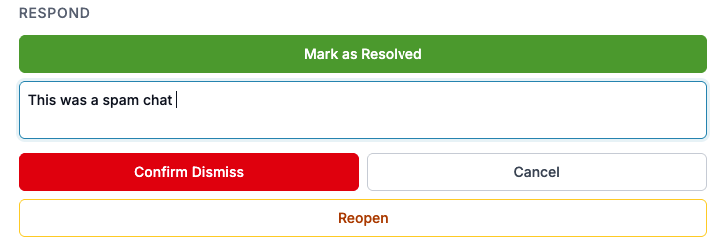
Contacts
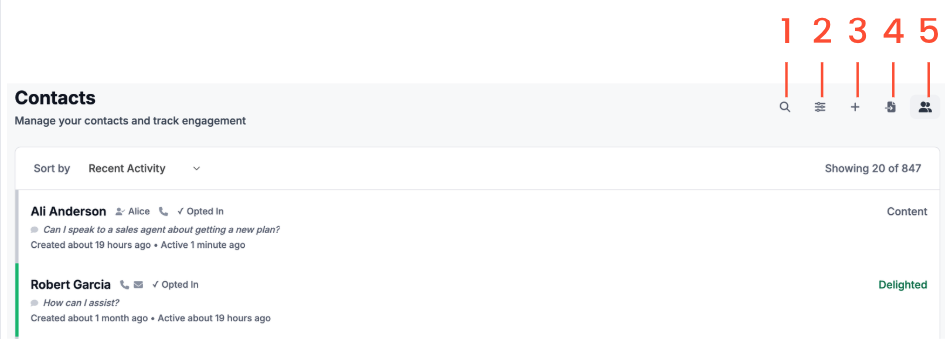
Keep track of all contacts through this icon
1. Search
Use the magnifier glass icon to search specific contacts
2. Filter
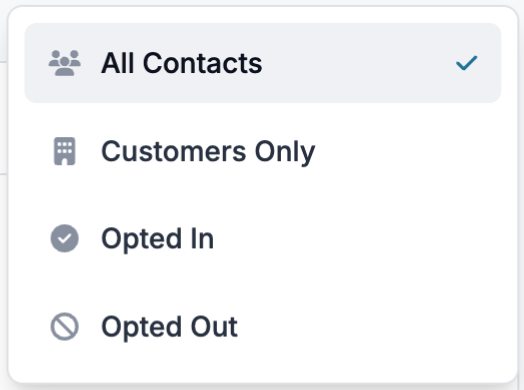
Your initial Contacts list will show all contacts. Use the filter to change to either Customers, or if they have opted in or out of SMS communications
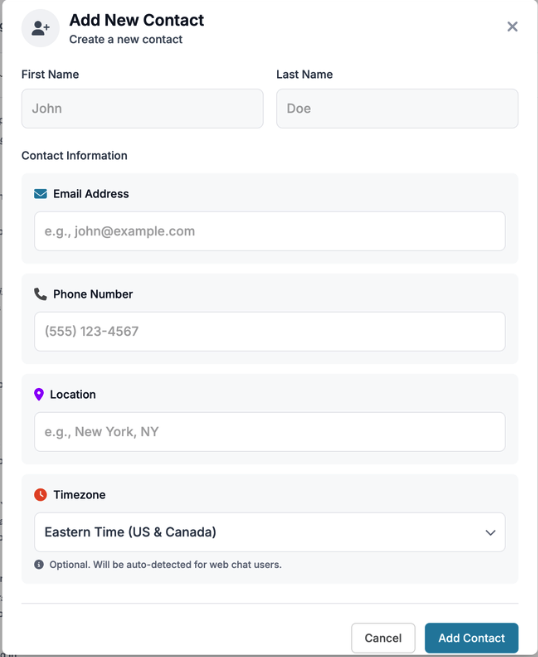
3. Add Contact
Create a new contact to communicate with through the + icon
4. Import Contacts
Import contacts as a CSV file to bulk upload contacts.
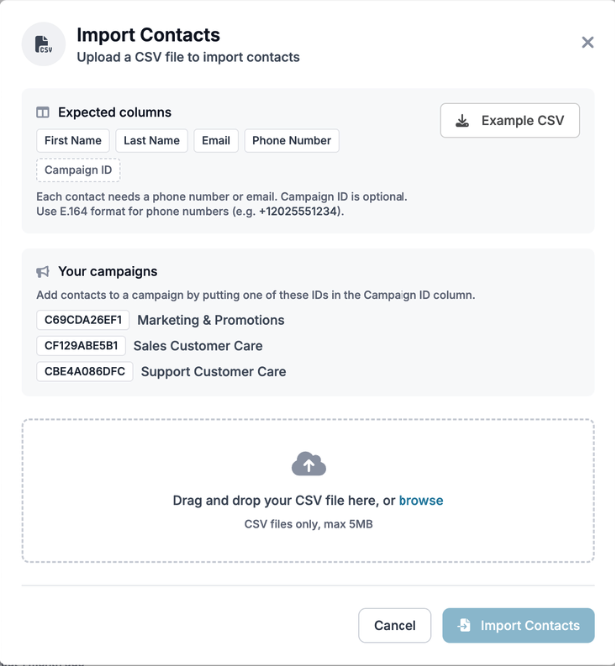
Review our example CSV for formatting through the file below
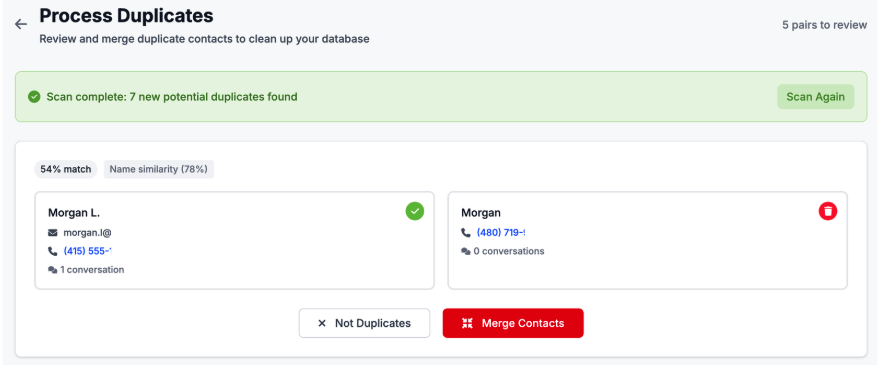
5. Process Duplicates
VirtualText reviews names, emails, and phone numbers to identify possible duplicates. Upon review, if the contact is not a duplicate, click ‘Not Duplicates’. If the contact is the same, click ‘Merge Duplicates’ to merge all information and conversations together for easier tracking
Quarantine
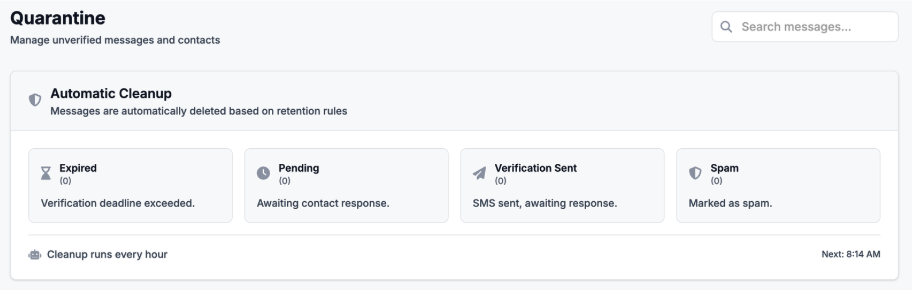
When a contact reaches out via SMS for the first time, they will be prompted to opt-in by responding with a specific keyword, and their name. If the contact does not respond by opting in, their initial message will stay in Quarantine, pending their opt-in
New to VirtualText?
Try it free before you commit.
Start a VirtualText free trial — SMS and webchat included, plus shared inbox and Core AI.
Still need help?
Our support team is available Monday–Friday, 6 AM – 6 PM PST.