Summary
Configure AI agents and playbooks in VirtualText — create agents, build playbooks, and automate customer conversations.
Here, you’ll learn how to add and AI agent to answer questions and/or triage conversations to your staff. You’ll also learn how to create Playbooks, or the rules and information in which the AI follows to complete these tasks.
AI Agents
AI Agents can help triage your conversations, engage with customers in tandem with your Playbooks (more on that later), and more.
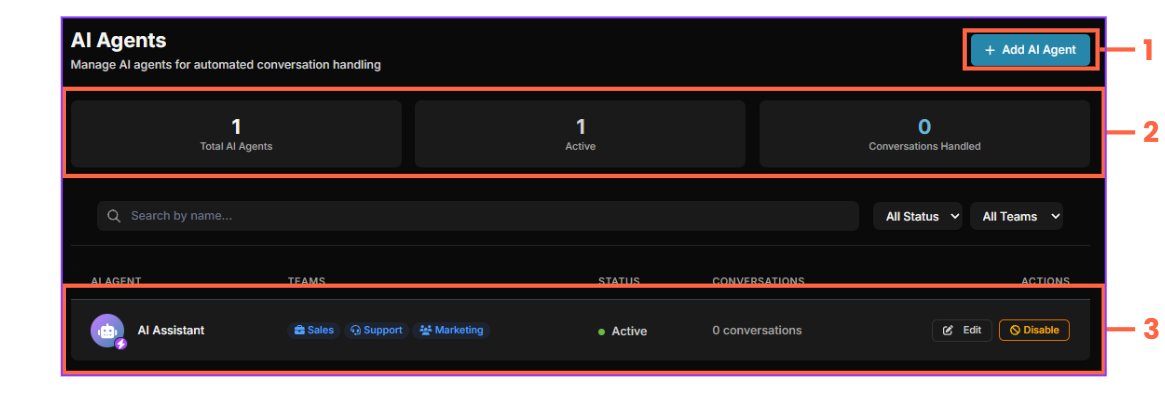
-
Add an AI Agent
-
Review your AI Agents’ statistics
-
Edit your existing AI Agent(s)
Adding an AI Agent
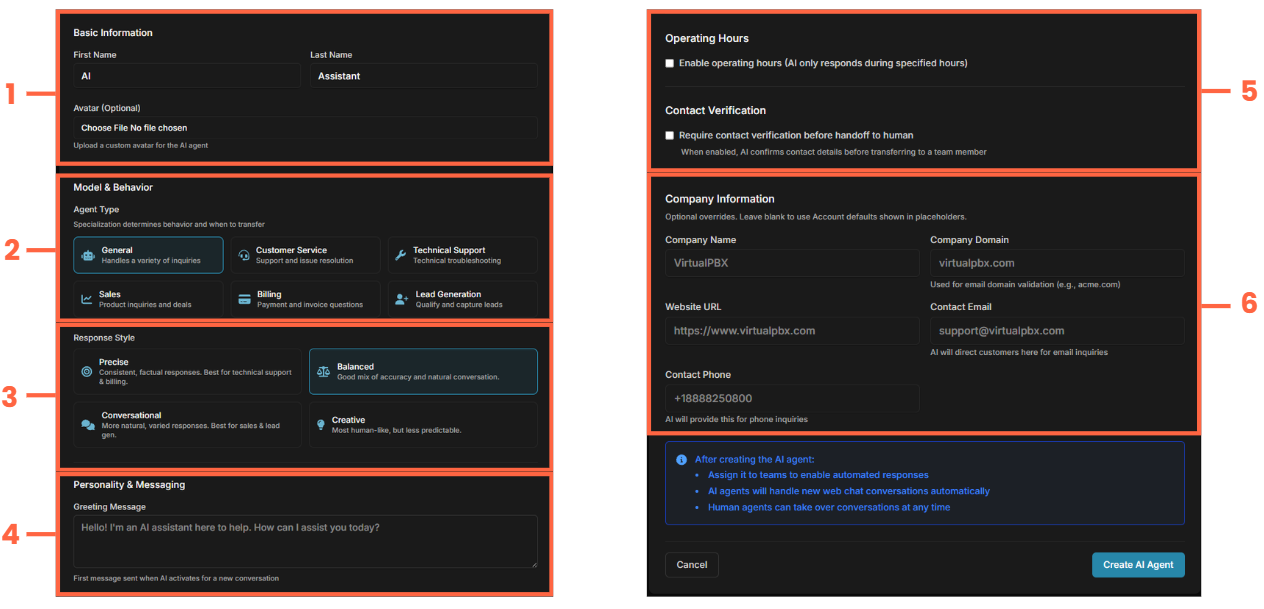
-
Pick a first/last name (AI / Assistant for example), and an optional Avatar
-
Choose a general behavior type for the AI to represent
-
Choose a Response Style
-
Precise - Accurate without much creativity
-
Creative - More human-friendly, but may get overly creative at times and return unintended results
-
Conversational - More varied, human responses. Best for sales & lead generation
-
Balanced - A nice mixture of all of the above
-
Greeting Message - Set a standard greeting for the AI Agent to greet consumers
-
Operating Hours - Set hours in which the AI Agent operates. Leave this unchecked if you would like it to work 24/7
-
Contact Verification - Verify customer contact info before transferring to a human team member
-
Company Information - This pulls from your “Account Settings” tab by default. Fill out info here if you would like to override that information with this agent.
Editing an AI Agent
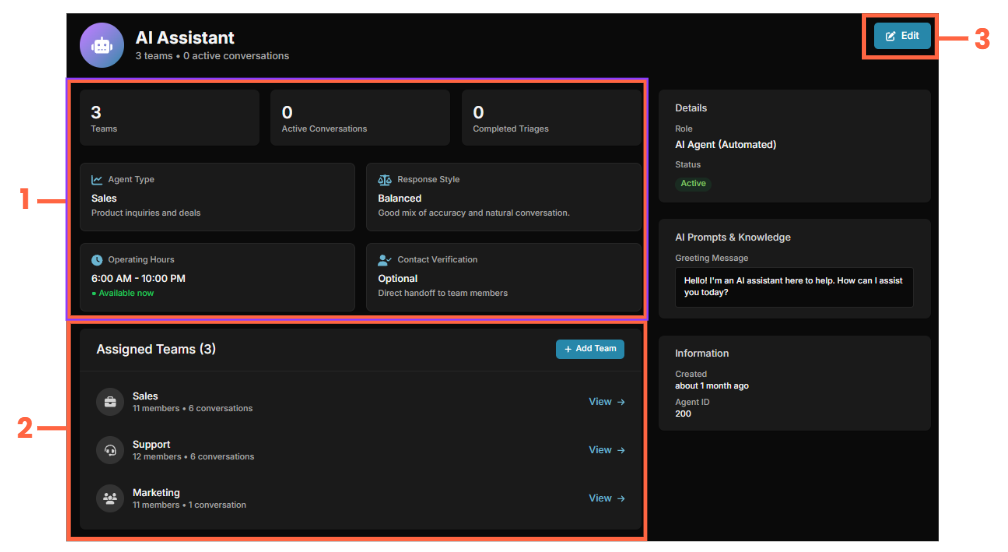
-
You can see some of the configurations for the AI Agent here
-
Review the teams the agent is assigned to
-
Edit the configuration of the AI Agent - all options from creating the agent will be available to change
AI Playbooks
A Playbook is what you AI Agent refers to when interacting with your consumer base. There are two types of playbooks, both of which your AI Agent refers to:
-
Team - This generally should be references in how your company operates as a whole
-
Agent - This is how you want the AI agent to behave.
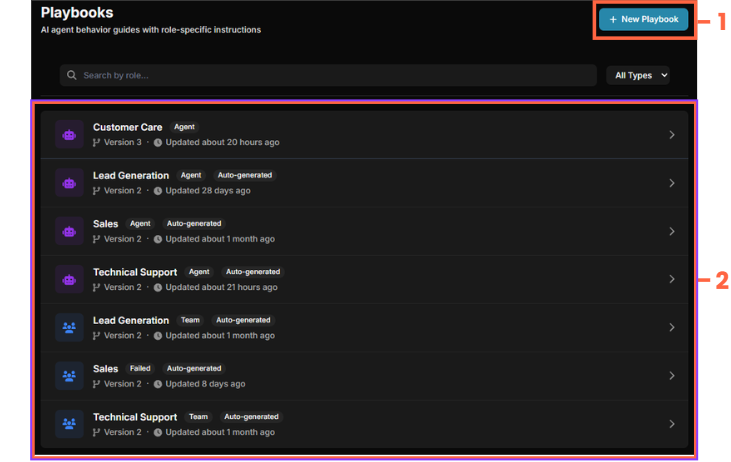
-
Create a New Playbook
-
Edit & View existing Playbooks
Adding a New Playbook
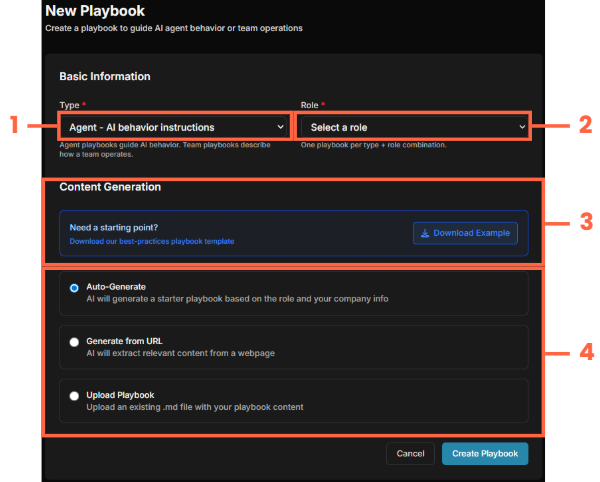
-
Type - This is where you decide if you want to make a Team or Agent Playbook
-
Select a general role for your AI agent that closest fits what its’ role will be
-
This will allow you to download a MarkDown (md) file type with an example of how to create a file to upload. This is not the only way to generate a playbook though, see step 4.
-
Choose the way in which you’d like to create the Playbook
Viewing and Revising a Playbook
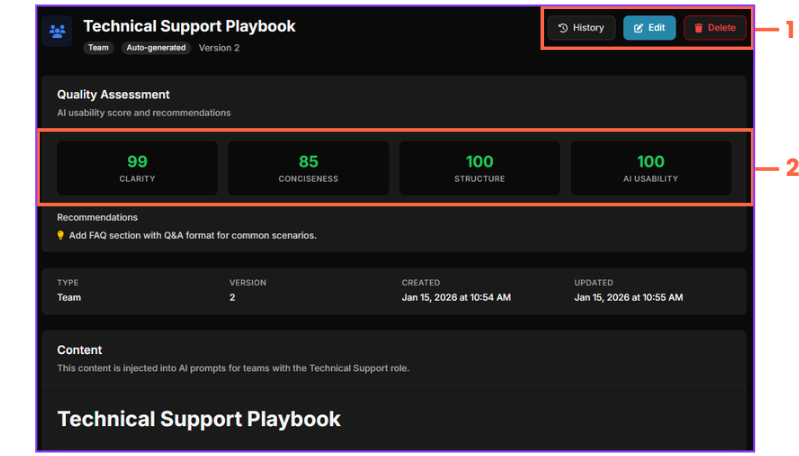
-
Review the history, and edit (See below) the playbook. You can also delete the playbook entirely here, but beware, you can’t get it back afterwards
-
The History allows you to review edits to your Playbook, and even restore it to another version. Great for rollbacks!
-
This is the AI score for your playbook. The goal is to be in the green in all categories.
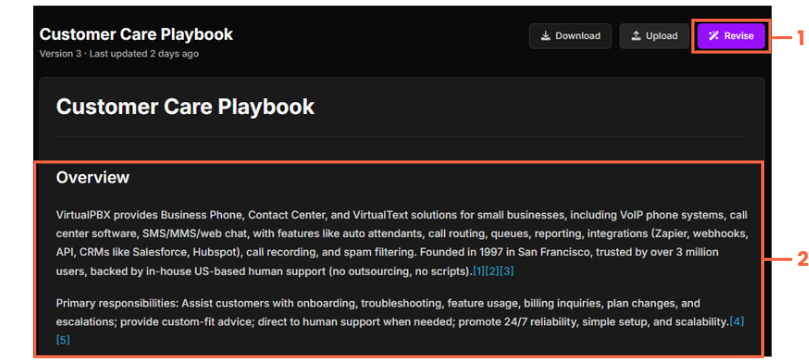
-
After clicking edit, you’re brought to this screen. You can Revise here; Shown in image below.
-
Here you’ll see how your Playbook operates. This is the information the AI Agent will refer to when interacting.
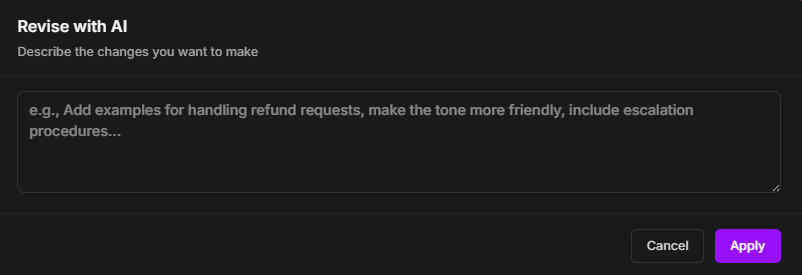
Here, simply prompt the AI with the changes you want. After it is complete, you can review the revision, and either cancel or accept it.
New to VirtualText?
Try it free before you commit.
Start a VirtualText free trial — SMS and webchat included, plus shared inbox and Core AI.
Still need help?
Our support team is available Monday–Friday, 6 AM – 6 PM PST.